What Is Zoom Rooms — and How Is It Different from Regular Zoom?
When people hear “Zoom,” they usually think of the familiar Zoom app used on laptops or phones. However, Zoom Rooms is a completely different product designed for a different scenario.
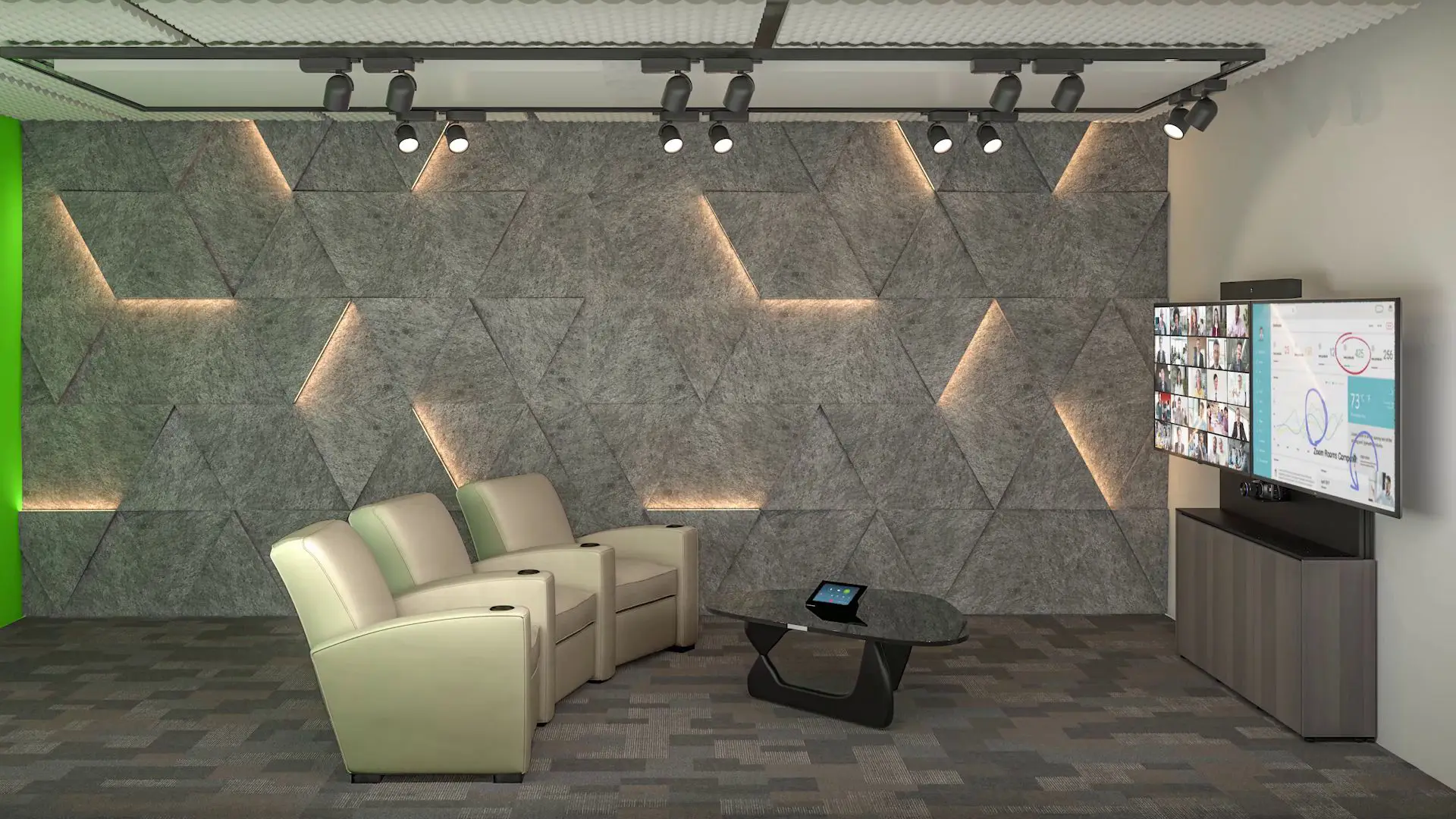
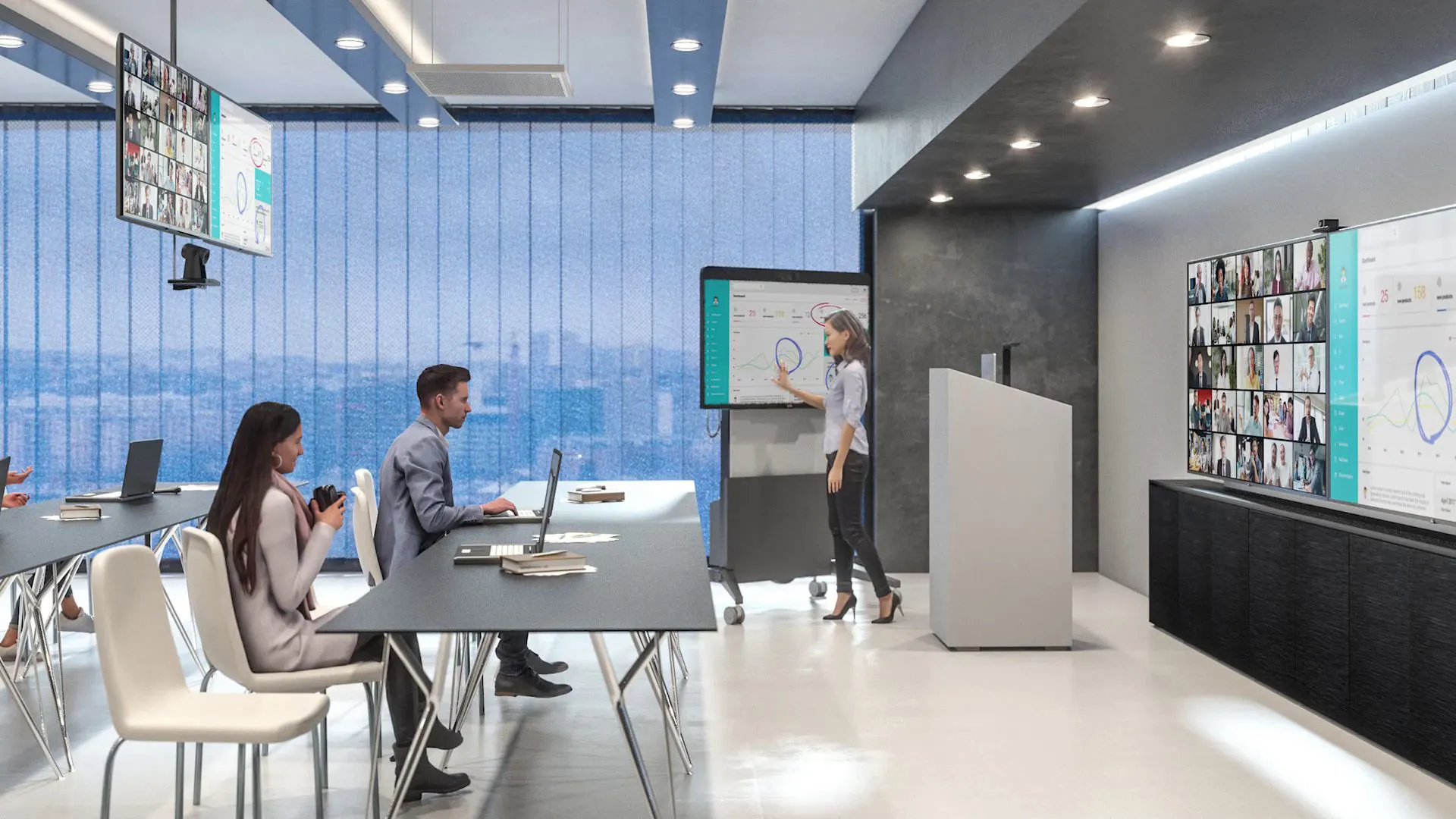
Unlike a regular Zoom account, which is built for individual users, Zoom Rooms is a dedicated application for physical meeting spaces. It is installed on in-room hardware—such as a computer connected to displays, cameras, microphones, and a touch controller—turning an ordinary conference room into a fully integrated video conferencing environment. The idea is to remove friction: instead of everyone bringing their own device, the room itself becomes the meeting participant.
Another important distinction is licensing. Zoom Rooms requires a separate annual license per room, which is not included in standard Zoom plans. This reflects its role as an enterprise-focused solution, typically deployed and managed centrally across multiple meeting rooms within an organization.
In short, while regular Zoom is ideal for personal communication, Zoom Rooms is built to power professional, shared meeting experiences.
What Is NDI and Why Does It Matter?
NDI (Network Device Interface) is a powerful IP-based protocol developed by NewTek, now under the Vizrt Group. It allows broadcast-quality video, audio, and control signals to travel over standard Ethernet networks with low latency and frame accuracy.
This eliminates the traditional complexity of multi-camera setups. Rather than relying on point-to-point HDMI or SDI cabling, NDI turns your existing network into a flexible video backbone — enabling any NDI-compatible device (including PTZ cameras) to send and receive streams effortlessly.
The addition of native NDI support in Zoom Rooms makes this even more powerful: PTZ cameras and production tools can now integrate directly with Zoom meetings over the network, simplifying hybrid events and reducing hardware requirements.
Zoom Rooms Meets NDI: Key Advantages
When Zoom Rooms integrates with NDI, it unlocks a much more flexible and modern AV workflow. Instead of relying on traditional hardware-heavy setups, you can build a system that is easier to deploy, scale, and manage—especially in hybrid meeting and event environments.
1. No More Capture Cards or Hardware Converters
In traditional AV setups, bringing external video sources into a system often requires capture cards or signal converters (for example, HDMI to USB). This not only adds cost, but also increases points of failure.With NDI, video is transmitted directly over the network. That means no extra hardware is needed to ingest camera feeds—as long as your devices support NDI, they can connect seamlessly to Zoom Rooms. The result is a much cleaner and more streamlined setup.
2. Support for Multiple NDI Camera Inputs
One of the biggest advantages is the ability to work with multiple camera feeds simultaneously. Zoom Rooms can support up to four NDI camera inputs at the same time, allowing for more dynamic and professional-looking video experiences.
For example, you could have:
3. High-Quality Video Performance
Quality is never compromised. By leveraging NDI’s efficient codec, Zoom Rooms can deliver video at up to 1080p at 60fps, ensuring smooth motion and clear visual detail. While this may not match the full specifications of high-end broadcast systems, it is more than sufficient for most corporate, educational, and hybrid event scenarios—providing a level of quality that feels polished, professional, and highly reliable.
4. Seamless Integration with Existing NDI Ecosystems
If your organization is already using NDI-compatible tools—such as software like OBS Studio or other NDI-enabled cameras and systems—Zoom Rooms can fit right in.
Because everything operates over the same network-based protocol, you can: Share video sources between systems Integrate live production workflows Expand your setup without major infrastructure changes.
In short, combining Zoom Rooms with NDI allows you to move from a hardware-centric AV setup to a network-driven workflow—making your system more flexible, scalable, and future-proof.
Step-by-Step Setup: Enabling NDI in Zoom Rooms with Telycam PTZ Cameras
Before getting started, make sure you have an active Zoom Rooms license and at least one Telycam PTZ camera connected to the same local network as your Zoom Rooms device.
Create Your Zoom Room and Set a Password
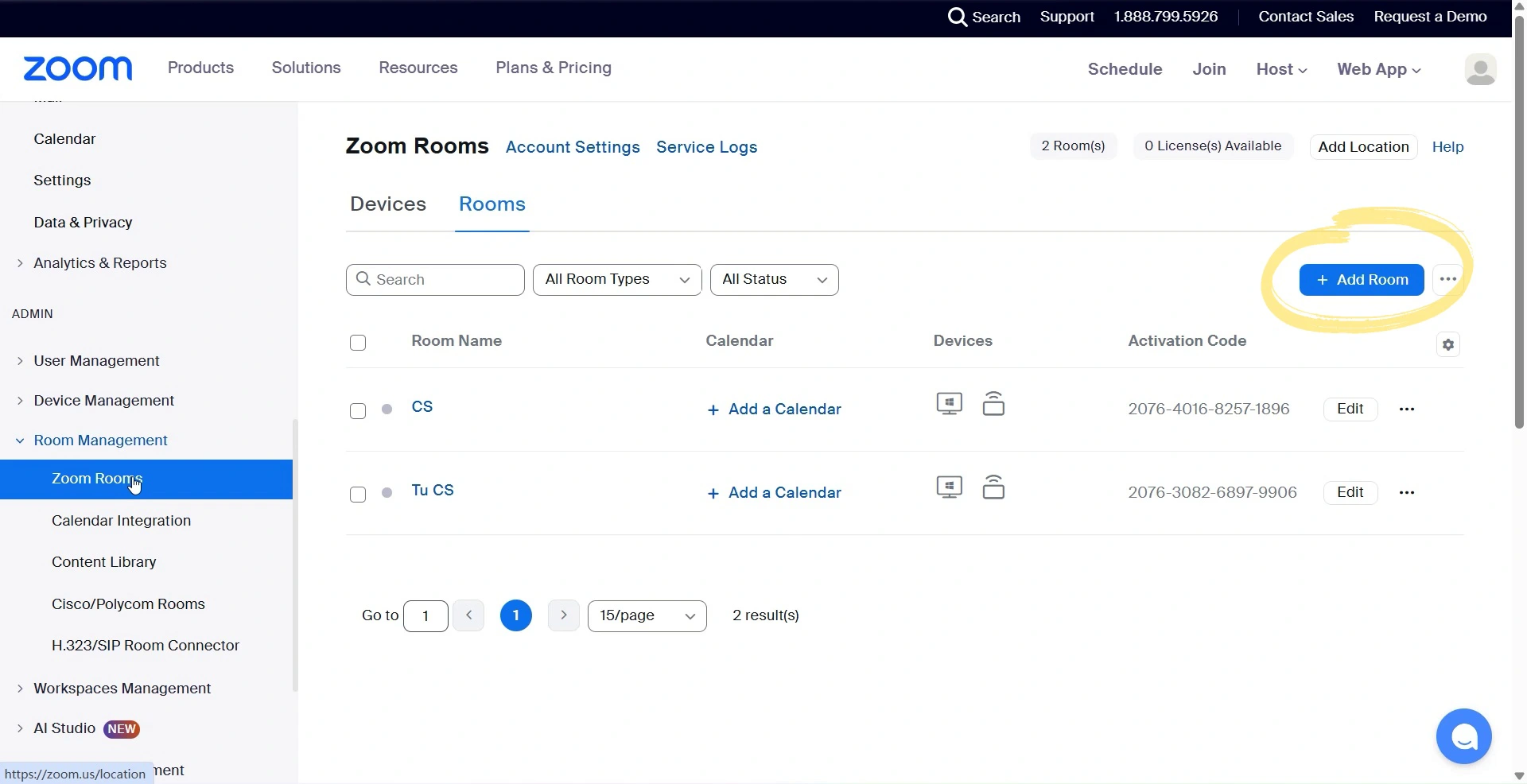
Log in to your Zoom account and navigate to Admin → Room Management → Zoom Rooms.
Click Add Room, give it a name, and save. Once the room is created, go into its settings, open the Basic tab, and set a room password — you'll need this later when configuring on-device settings and camera presets.
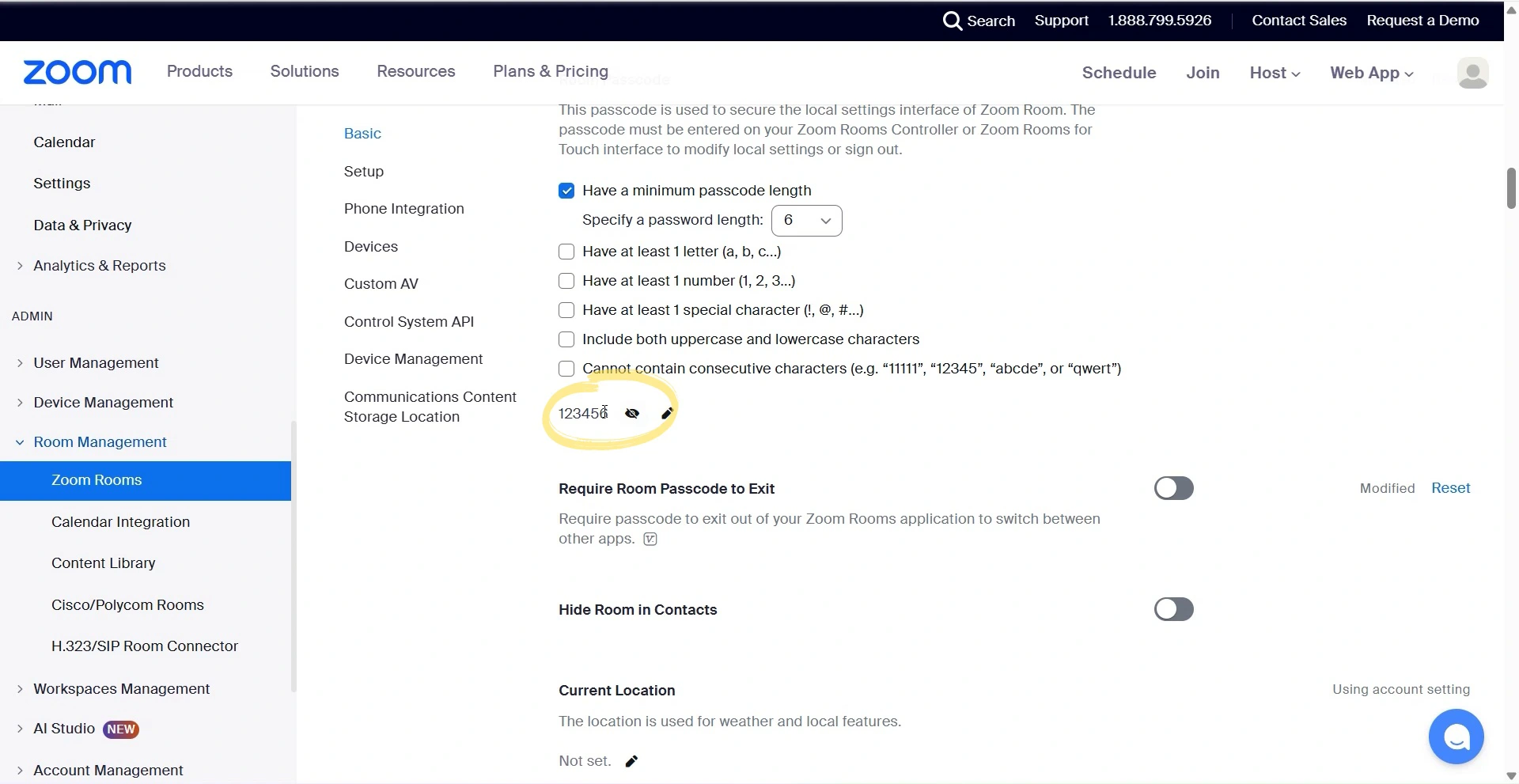
Enable Multi-Camera Mode
Still in the Room Settings, scroll down to the Devices section and check the option for Multi-Camera Mode. Once enabled, Zoom Rooms will allow up to four simultaneous camera feeds within the same meeting.
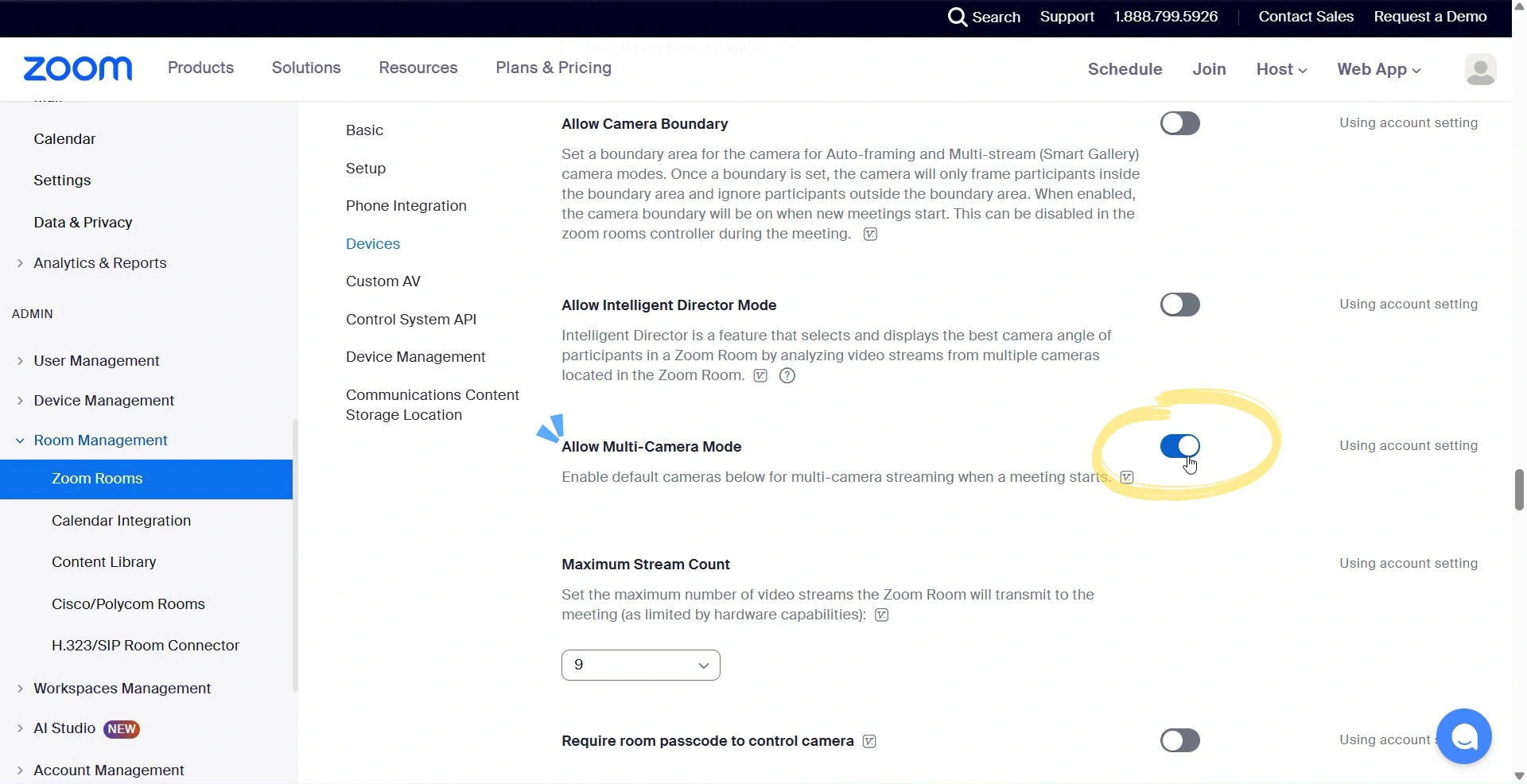
Enable NDI In and Out
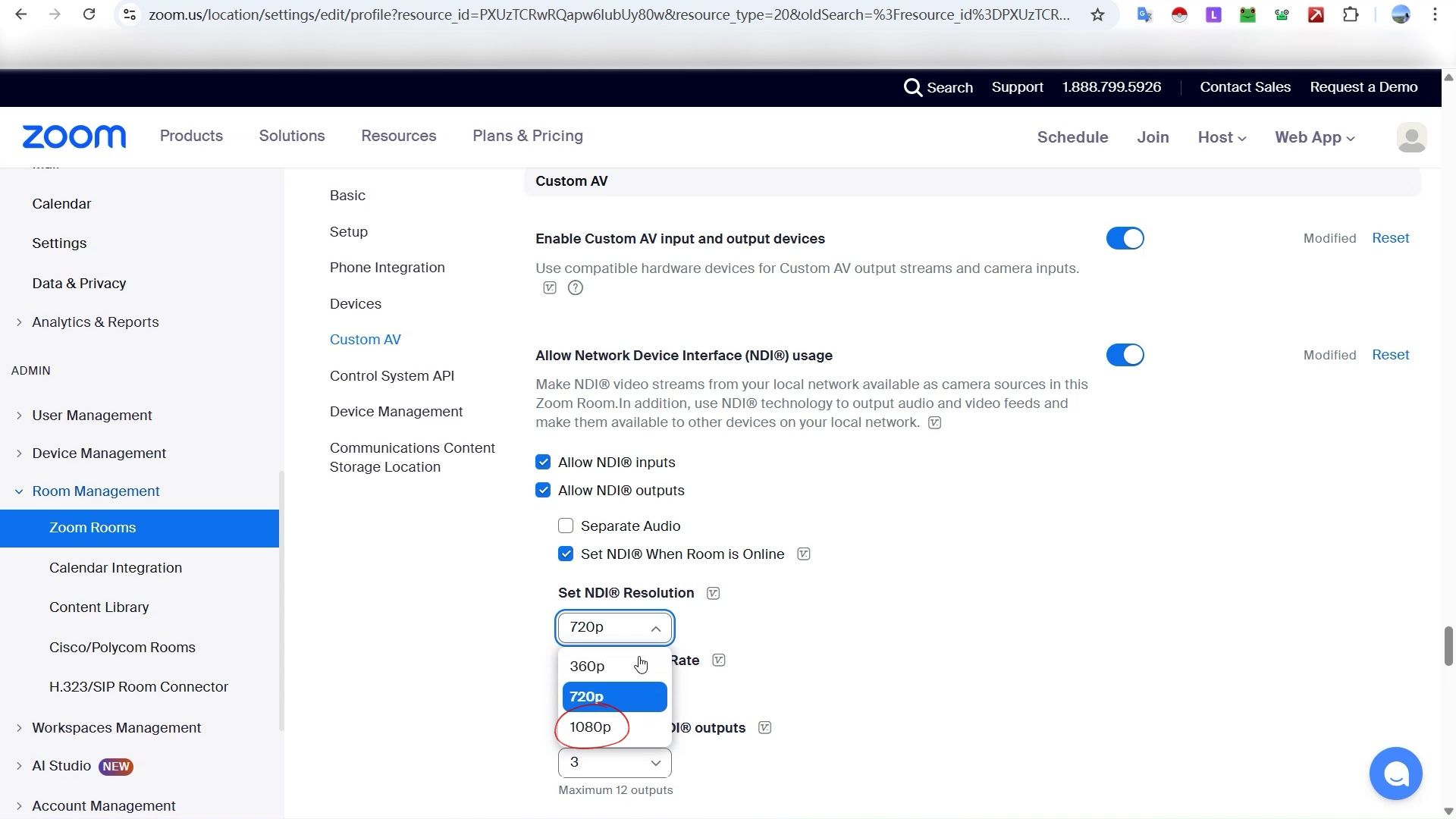
Scroll further down to the Custom AV section and enable NDI In and Out. This is the setting that allows Zoom Rooms to both receive NDI streams from your cameras and send its own output as an NDI source to other devices on the network.
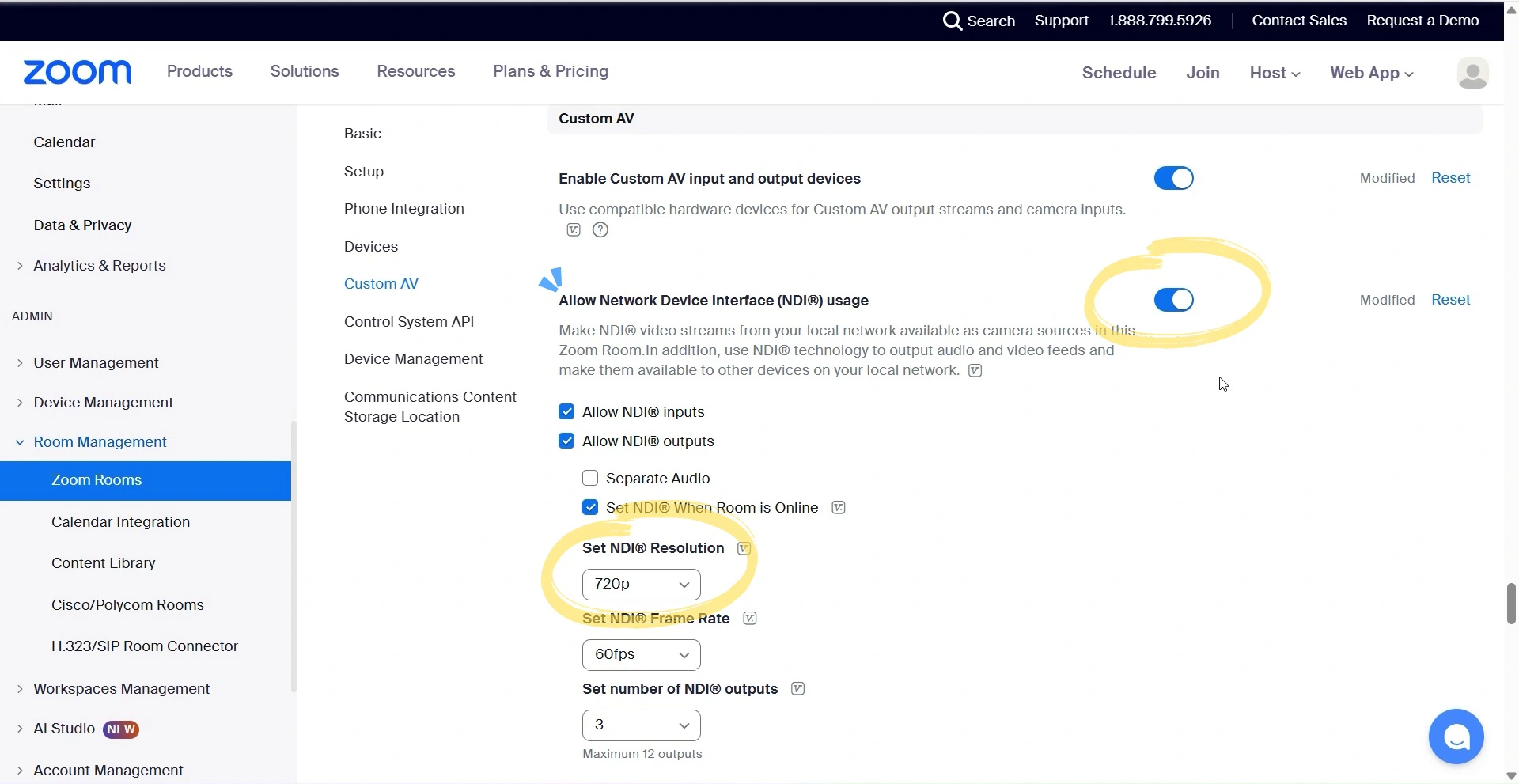
Set Your Resolution
Once NDI is enabled, choose your preferred resolution. Zoom Rooms supports up to 1080p at 60fps for NDI streams. For most hybrid event setups, 1080p at 30fps is a solid starting point — you can always adjust this later under Advanced Settings in your Control Panel.
Discover NDI Sources on the Network
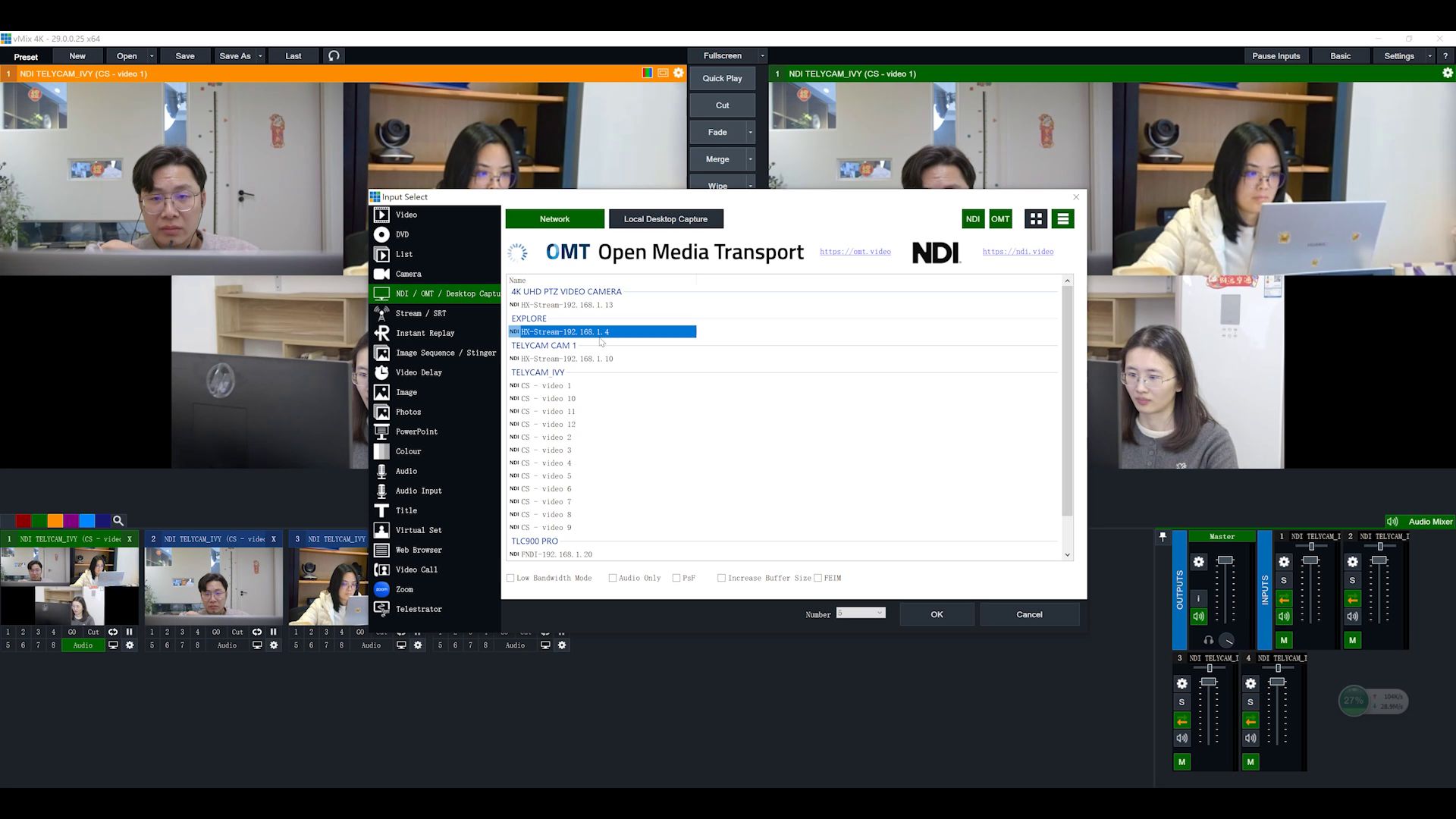
When you start a meeting in Zoom Rooms, it will automatically scan the local network and discover all available NDI sources — including both NDI HX3 and full-bandwidth NDI streams. Your Telycam PTZ cameras will appear here, and you can add up to four NDI inputs directly into the meeting interface.
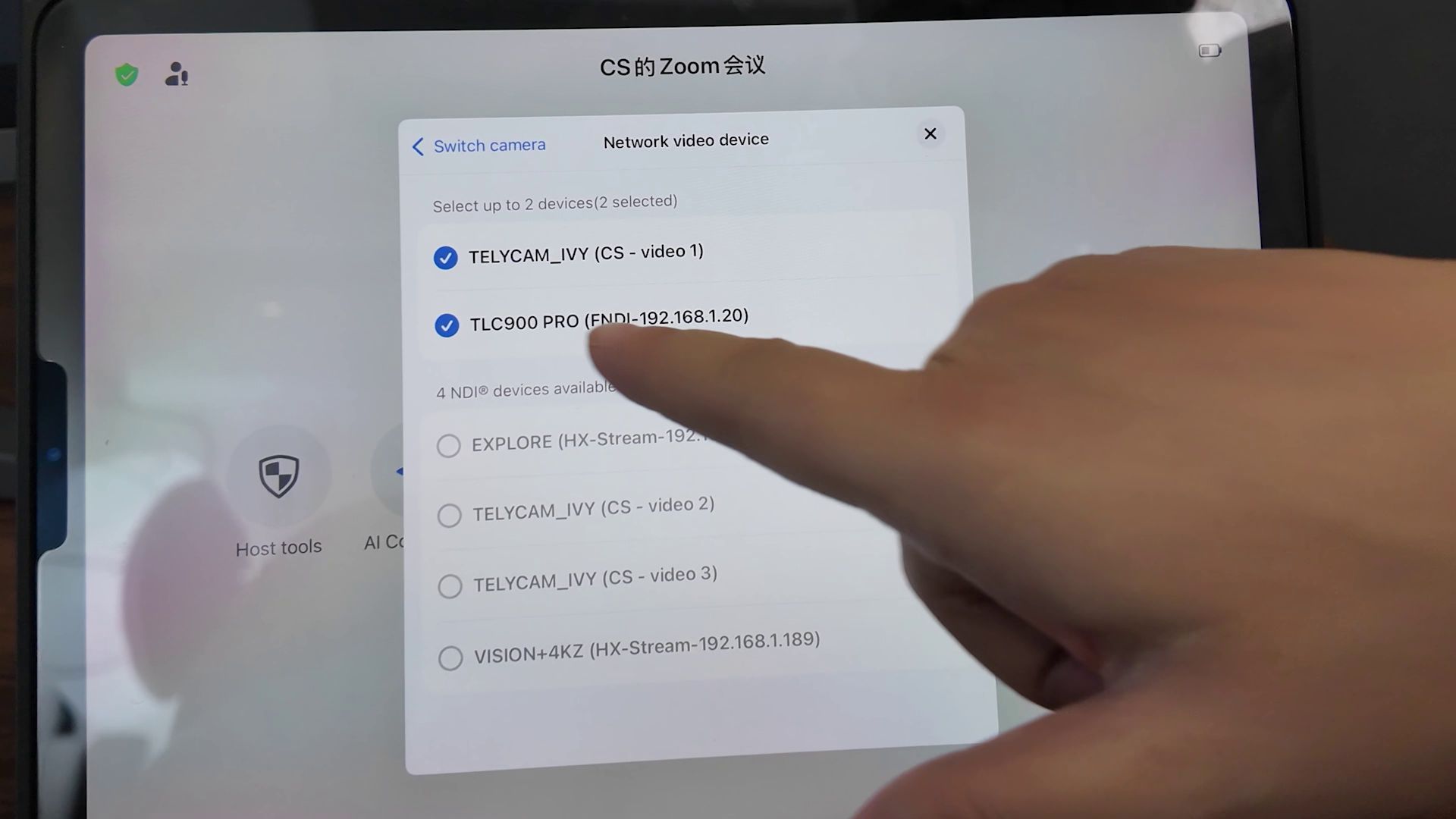
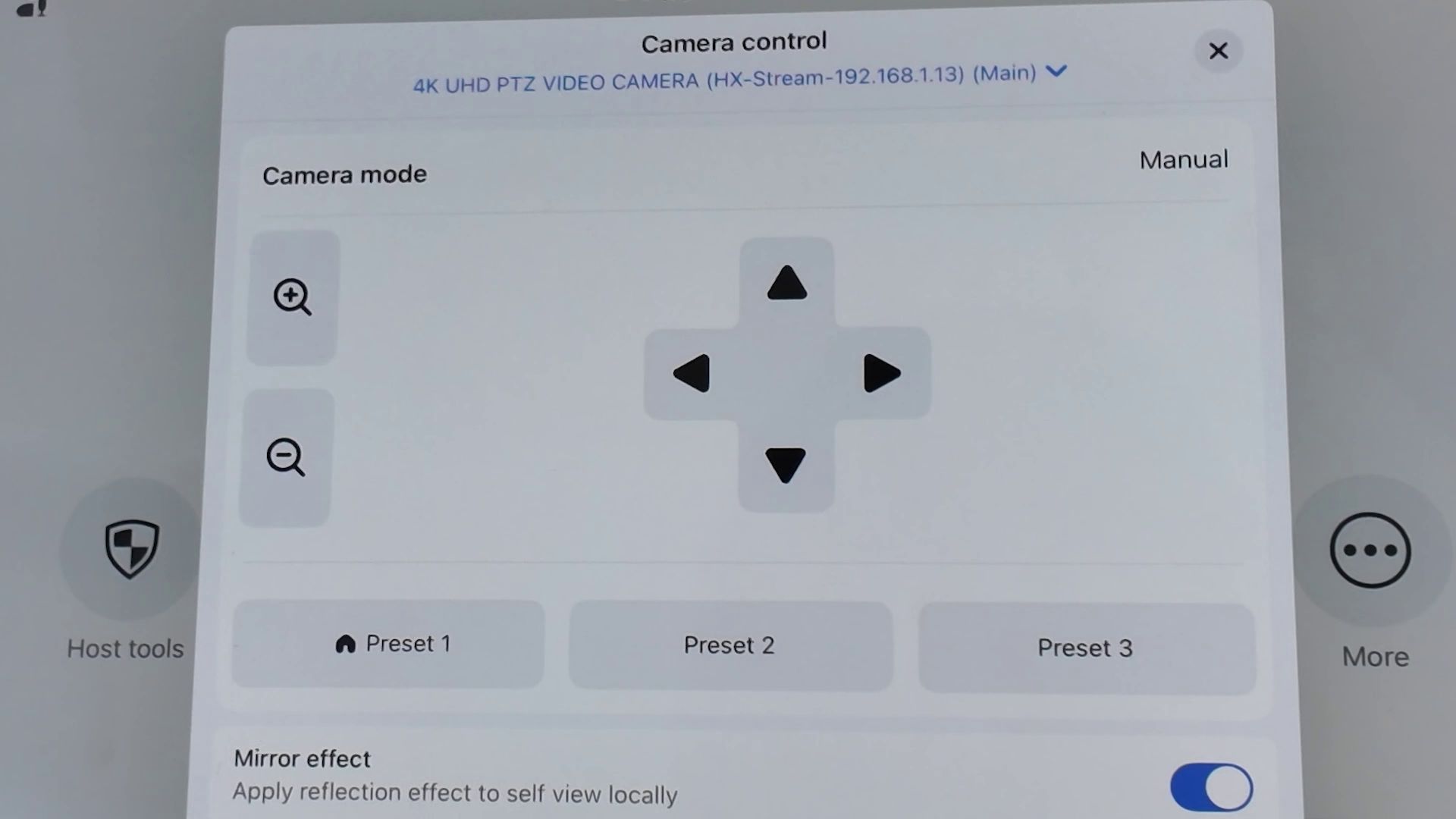
Assign Camera Presets
For each NDI stream, you can assign up to three presets — saving specific pan, tilt, and zoom positions for your cameras. If you want these presets to remain consistent across every meeting, save them as the default position. This is especially useful for recurring events or fixed room setups where camera angles don't change.
Complete Visual Walkthrough
Prefer to follow along visually? Watch our full demo below, where we walk through the entire setup process — from configuring Zoom Rooms in the admin panel to getting live Telycam PTZ camera feeds running in a meeting.
Building a Professional Hybrid Event Workflow
Once your NDI streams are live in Zoom Rooms, the real flexibility begins. Every NDI output from your Telycam PTZ cameras can be pulled directly into production software like OBS, vMix, TriCaster, or Telestream — no additional hardware required. From there, you can mix multiple camera angles, add graphics, lower thirds, and your client's branding, then send that polished program feed back into Zoom Rooms as a single NDI source.
At the same time, those NDI streams can be routed to an NDI decoder and displayed on TVs or LED screens around your venue — keeping your in-room audience just as engaged as the people watching online.
The result is a broadcast-quality experience delivered through a setup that's far simpler than traditional production workflows. What used to require dedicated video infrastructure can now run over your existing network, with Zoom Rooms sitting at the center of it all.
Conclusion
Zoom Rooms' native NDI support marks a genuine step forward for hybrid event production. By combining the simplicity of Zoom Rooms with the flexibility of NDI, teams can now manage multiple camera feeds, integrate professional production tools, and deliver a polished experience to online audiences — all over a standard network, without the hardware complexity that used to come with it.
Pair that with Telycam PTZ cameras, and you have a setup that's not just easier to manage, but capable of producing broadcast-quality results for everything from corporate meetings to large-scale live events.
Ready to build your hybrid event setup? Explore our full lineup of Telycam PTZ cameras or get in touch with our team to find the right configuration for your space.