What is OBS Streaming Software
OBS Studio
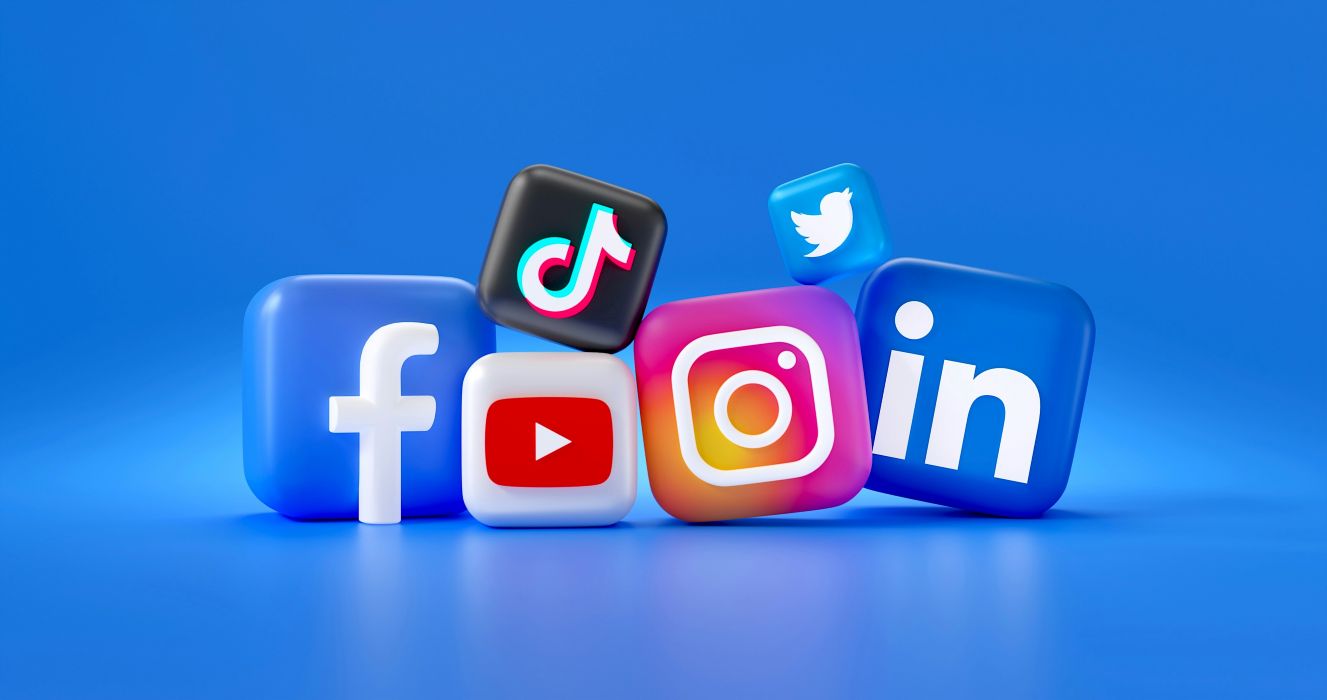
In recent years, streaming videos and online events have become an integral part of everyday work and entertainment. From hybrid meetings and virtual conferences to live streams on TikTok, Twitch, YouTube, and Facebook Live, these platforms have become household names.
Yet, creating streams that look professional and engaging is still a challenge—many struggle with inconsistent visuals, audio glitches, and unpolished layouts. This is where OBS Streaming Software steps in, offering the tools to make your live streams and recordings look smooth, dynamic, and high-quality.
In this post, we’ll explore what OBS is, its key features, and how it can help you take your streaming to the next level.
Table of Contents
What is OBS?
OBS, short for Open Broadcaster Software, is a free and open-source software designed for screen recording and live streaming. Also known as OBS Studio, it allows users to capture video and audio in real time, mix multiple sources such as webcams, screens, media files, and microphones, and broadcast or record high-quality video with full creative control.
Why OBS Is So Popular Among Creators?
One of the reasons OBS Streaming Software is so widely adopted is its flexibility. Users can create custom scenes using layered sources, switch scenes instantly, and stream to platforms like YouTube, Twitch, Facebook Live, and TikTok simultaneously or individually. These advanced capabilities, often found only in paid tools, are available in OBS at no cost.
OBS Studio is compatible with Windows, macOS, and Linux, making it accessible to a broad range of creators. It’s commonly used for live streaming, gameplay capture, online classes, virtual events, presentations, and tutorial recordings. However, while OBS excels at live production and capture, it offers very limited built-in video editing features, meaning post-production typically requires additional software.
Key Features of OBS Studio
Record and Stream in Real Time
OBS lets you record your screen or go live instantly. You can capture your desktop, a game, a webcam, or your microphone, and OBS combines everything into one video in real time.
Build Scenes with Multiple Sources
In OBS, a scene is like a layout. You can place your camera, screen, images, or text together on one screen. You can create as many scenes as you want and switch between them while streaming.
Control Your Audio Easily
OBS includes a built-in audio mixer that helps you control sound levels for each source. Simple filters like noise reduction and volume adjustment make your audio clearer without extra software.
Customize Your Setup
You can adjust settings, add shortcuts, and install plugins to make OBS work the way you want. Even though OBS is powerful, you can start simple and add more features later as you get comfortable.
Professional Features for Better Live Production
Preview Before Going Live
OBS offers a preview mode that lets you check scenes and layouts before showing them to your audience. This helps avoid mistakes during live streams.
Smooth Scene Transitions
You can switch scenes with smooth transitions instead of hard cuts. This makes your stream look more polished and professional, even with a simple setup.
Quick Controls with Hotkeys
OBS allows you to assign keyboard shortcuts for common actions, like switching scenes or muting your microphone. This is especially helpful if you’re streaming alone.
A Flexible Interface That Grows with You
You can rearrange OBS panels or move them to different windows. As your setup becomes more complex, OBS adapts without forcing you to relearn everything.
Who Should Use OBS?
OBS is a versatile tool that can be used by a wide range of creators. Here are some common users who can benefit from it:

Social Media Creators and Streamers
If you want to produce professional-looking live streams or videos for platforms like YouTube, Twitch, TikTok, or Facebook Live, OBS makes it easy to combine multiple cameras, screens, and text into one polished production.
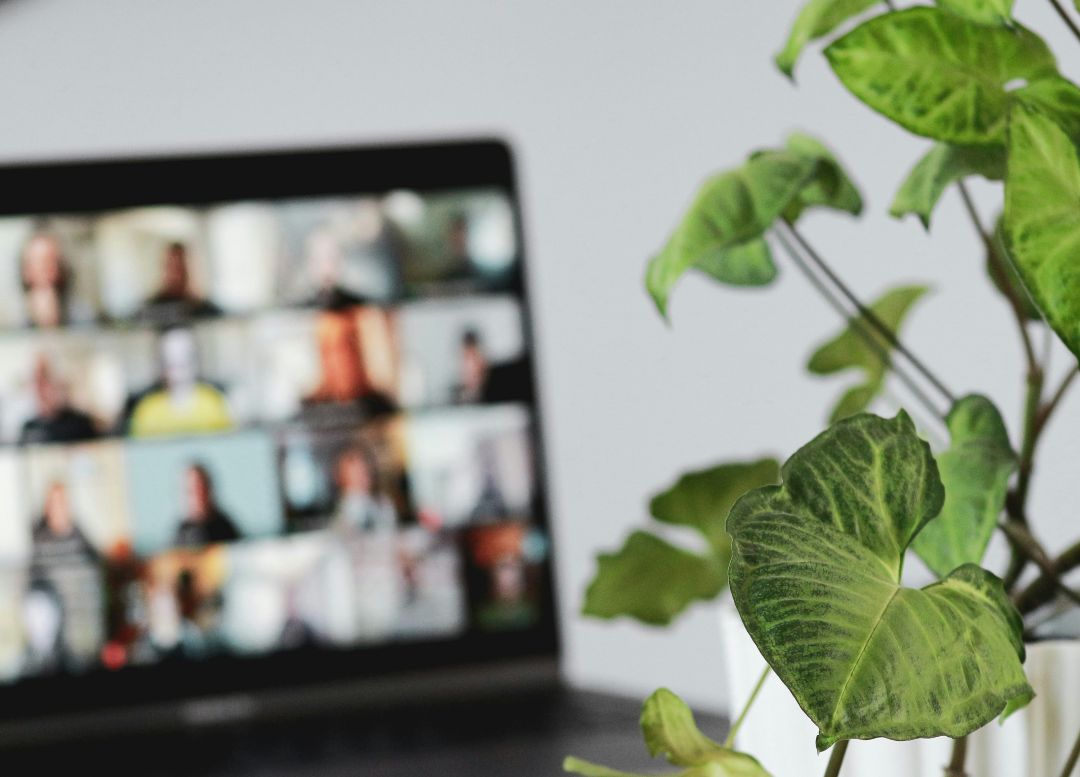
Educators and Online Presenters
Teachers, trainers, or anyone running webinars can use OBS to highlight the speaker, display slides or bullet points, and switch layouts smoothly. This helps keep both in-person and remote audiences engaged.
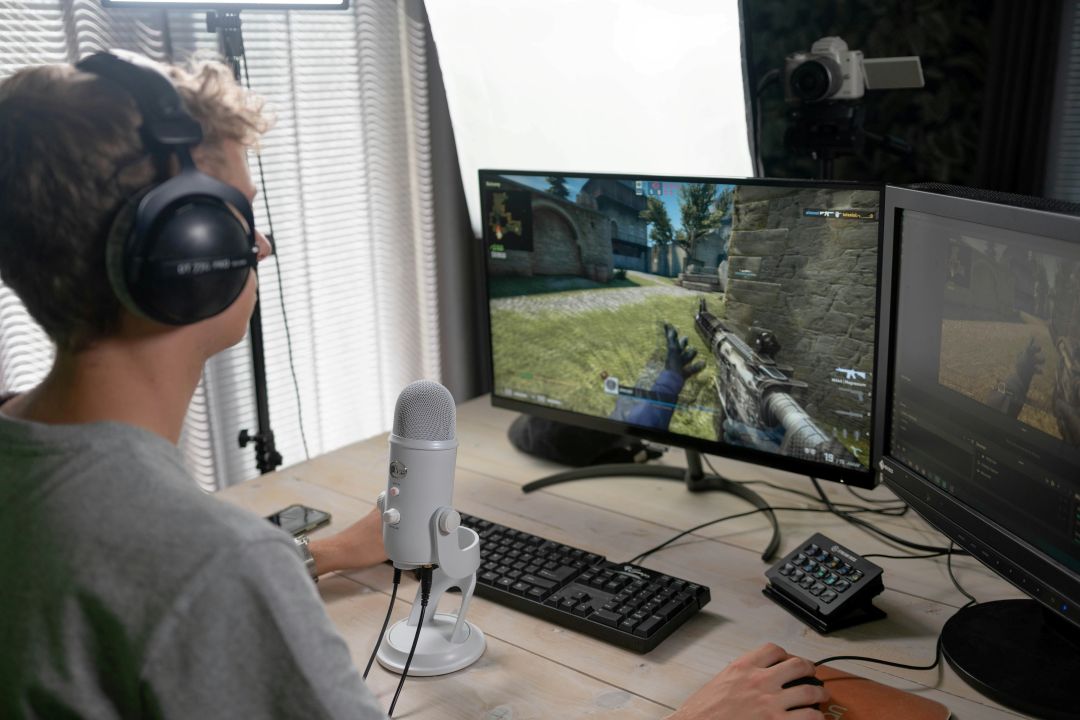
Gamers and Esports Streamers
Gamers who stream on Twitch or other platforms can use OBS to capture gameplay, switch between game and webcam views, and overlay chat or alerts in real time, giving viewers a more interactive experience.
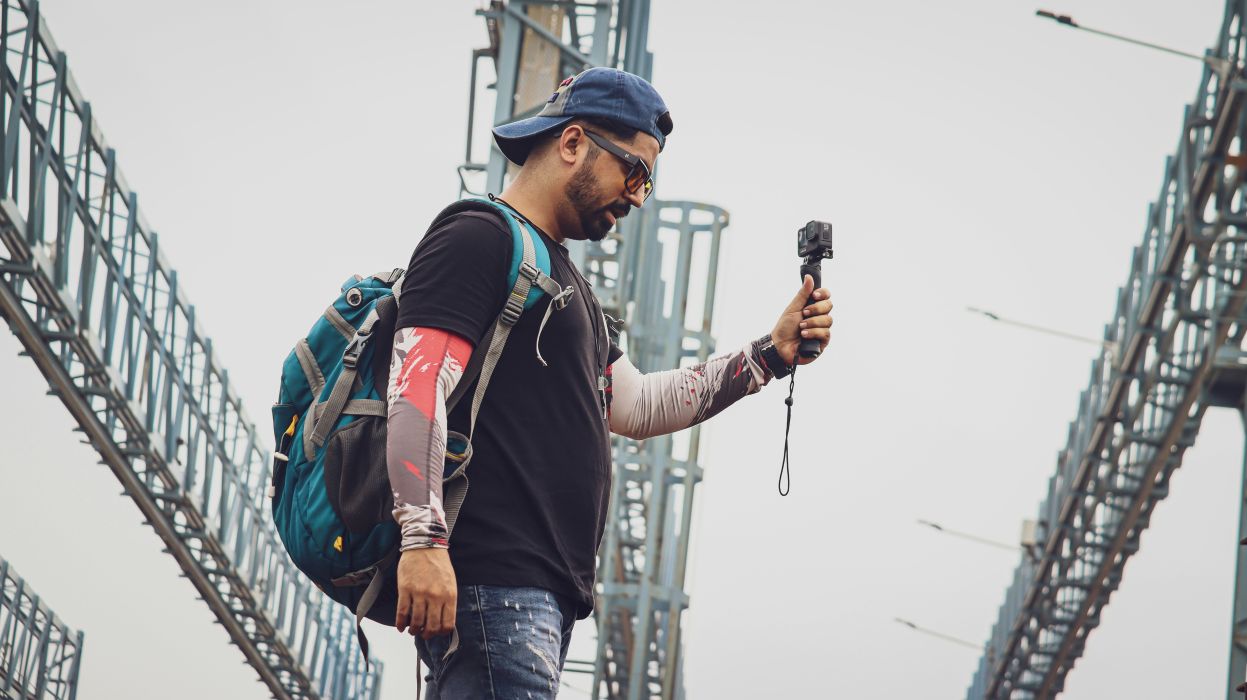
Vloggers and Video Creators
OBS is great for recording or streaming vlogs and other video content. You can mix camera feeds, add captions or graphics, and ensure high-quality audio and video, whether you’re recording for later editing or going live.
How to Use OBS Software?
Getting started with OBS is easier than you might think. Here’s a simple guide for beginners:
Prepare Your Camera
To stream or record high-quality video, you need a reliable camera. If possible, use a PTZ camera that can pan, tilt, and zoom smoothly. A poor-quality camera might cause lag, crashes, or low-quality video.
Check Your Computer
OBS works on Windows, macOS, and Linux, but you need a computer that can handle live streaming and recording. Make sure it can capture, render, and upload video at the same time without slowing down.
Choose a Streaming Platform
Decide where you want to go live. OBS supports popular platforms like YouTube, Twitch, Facebook Live, and Instagram.
Connect OBS to Your Platform
Open OBS and go to Settings → Stream. Select your preferred platform from the dropdown menu. Then find your stream key on the platform’s dashboard, copy it, and paste it into OBS. This links your OBS software to your channel, allowing you to go live.
Start Streaming or Recording
Once everything is set up, you can start streaming or recording with the Start Streaming or Start Recording buttons in OBS. You can also set up multiple scenes, add text, images, or overlays, and switch between them while streaming.
Learn More with Video Tutorials
We’ve also created a few video tutorials on our YouTube channel using Telycam NDI PTZ cameras. These videos demonstrate practical ways to work with OBS.
If you’re interested, feel free to watch any of these tutorials:
Add the NDI Plugin in OBS
Add Different Sources in OBS
Use OBS with Zoom
Conclusion
OBS is a versatile tool used by a wide range of people, from content creators and gamers to vloggers, educators, non-profits, and businesses. It helps produce engaging video content that keeps viewers interested throughout the stream.
At Telycam, we support your streaming and recording projects with high-quality cameras that work seamlessly with OBS. Over the years, we’ve partnered with many organizations, helping them achieve smooth and professional live productions. If you’d like to learn more about improving your streams or recordings, feel free to contact us for advice and solutions.
Contact Telycam
Sales Inquiries
sales@telycam.com
Call Us
+86-755-33275155