

How To Optimize OBS For Streaming?
Practical OBS settings for more professional and predictable streams.
OBS (Open Broadcaster Software) is widely used for live streaming, but effective streaming depends on how OBS is configured.
This guide explains essential OBS settings for streaming, including bitrate, encoder options, keyframe intervals, hotkey configuration, and audio filters, helping creators build a more reliable streaming setup.
Table of Contents
What is OBS?
OBS (Open Broadcaster Software) is a free, open-source tool used for capturing, encoding, and streaming video in real time. It takes raw video frames from sources like cameras, screens, and media files, then encodes them into a streamable format that platforms such as YouTube, Twitch, and Zoom can process.
Why OBS Settings Matter for Live Streaming?
Bitrate is one of the most important settings in OBS. It determines how much data is used to encode your video over time, which directly affects how much work your system has to do during a live stream. Setting a bitrate too high can overload your CPU or GPU, while too low a bitrate may reduce visual clarity.
OBS performs real-time encoding, so system resources like CPU, GPU, and memory play a critical role in maintaining smooth streams. When OBS shares resources with other graphics-heavy applications, improper settings can lead to dropped frames, lag, or unstable streams—highlighting why proper configuration is essential for reliable live streaming.
Even if you’re using Streamlabs OBS, a version of OBS with built-in alerts and overlays popular among gamers, the core principles remain the same. Understanding how OBS handles encoding and system resources ensures that your streams run efficiently, no matter which version you choose.
Best OBS Optimization Settings for Live Streaming
One of the biggest challenges for streamers is configuring OBS to get smooth and professional-looking streams. OBS offers many features and settings that, when properly adjusted, can make your content more polished and enjoyable for viewers.
While software optimization is key, the quality of your camera also matters. Using a high-quality live streaming PTZ camera can help you capture clearer video, higher resolutions, and even ultra 4K footage, giving your streams a more professional look.
Bitrate Settings
Bitrate determines how much data is transmitted per second in your video or audio stream, measured in kilobits per second (kbps). A higher bitrate generally means better video quality, but it also consumes more system resources and storage. The key is to find a balance between quality and performance for smooth streaming.
Here are recommended bitrate ranges for common streaming setups:
- 720p at 30 FPS: 1500–4000 kbps
- 720p at 60 FPS: 2500–5000 kbps
- 1080p at 30 FPS: 3000–6000 kbps
- 1080p at 60 FPS: 4500–9000 kbps
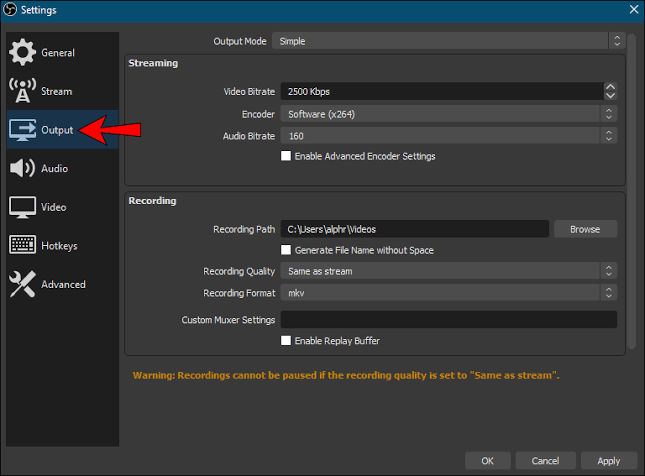
Adjusting your bitrate according to your resolution and frame rate ensures a streamable video quality without overloading your system.
Encoder Settings
Recommended encoder: NVIDIA NVENC (H.264)
An encoder converts your video into a digital format for streaming or recording. NVIDIA NVENC (H.264) is recommended for most streamers because it offloads processing from the CPU to your GPU, reducing system load and helping high-resolution or high-frame-rate streams run smoothly.
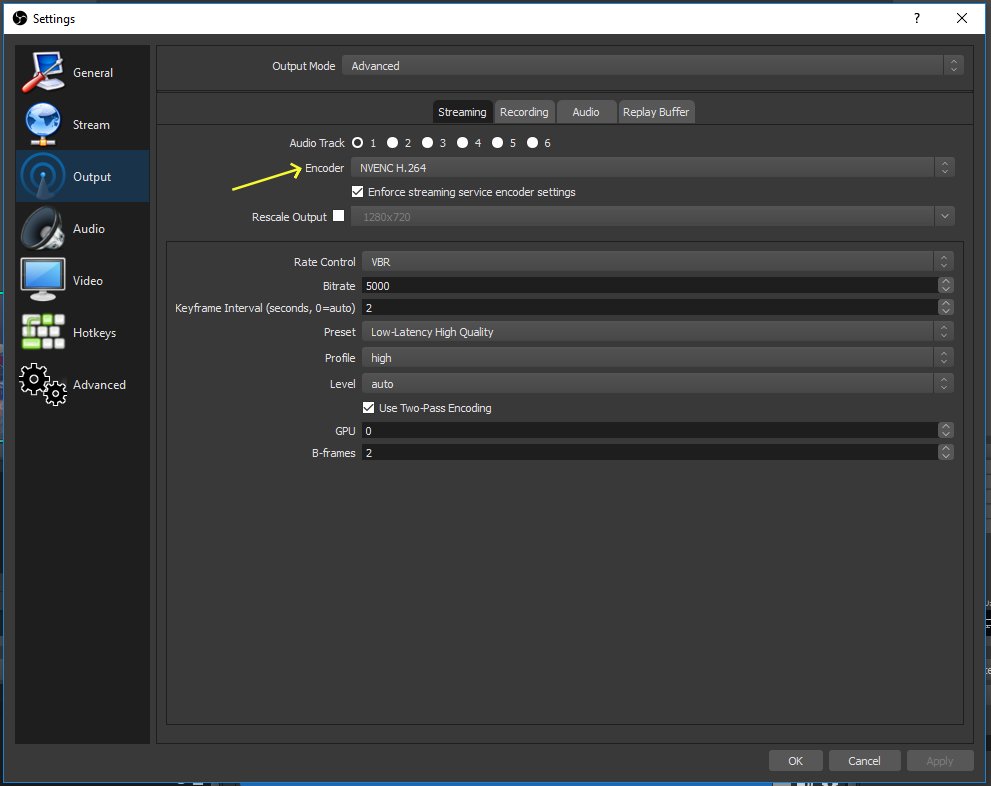
Alternatively, x264 is an open-source software encoder that works on almost all platforms and can sometimes produce slightly sharper details at lower bitrates. However, it relies entirely on the CPU, which can cause high system load, dropped frames, or overheating—especially if you’re streaming CPU-intensive games.
x264 only shows its potential advantages in a dual-PC setup, where one PC handles gaming and the other handles encoding. For single-PC setups, NVENC is generally the safer choice.
Adjust Keyframe Interval
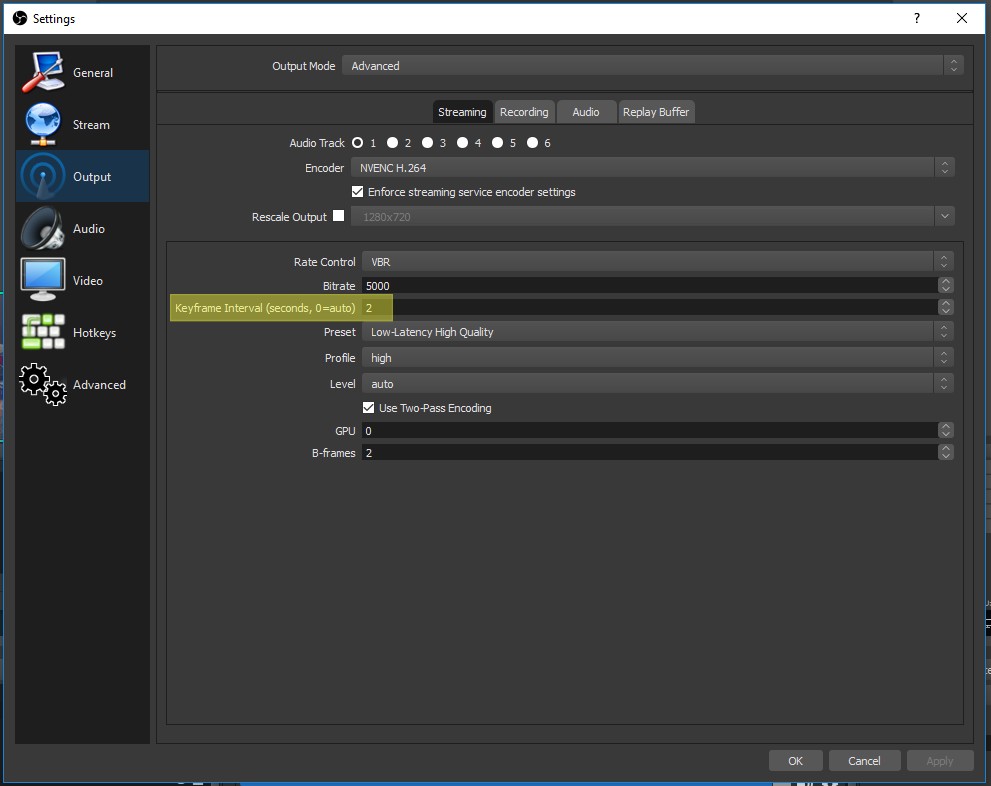
Recommended setting: 2 seconds
The keyframe interval (or i-frame interval) controls how often OBS sends a full image of your video. Setting it too high can cause noticeable compression artifacts, while a lower interval ensures smoother playback. Using 2 seconds strikes a good balance between bandwidth efficiency and video quality, reducing redundant data while keeping your stream stable.
Hotkey Configuration
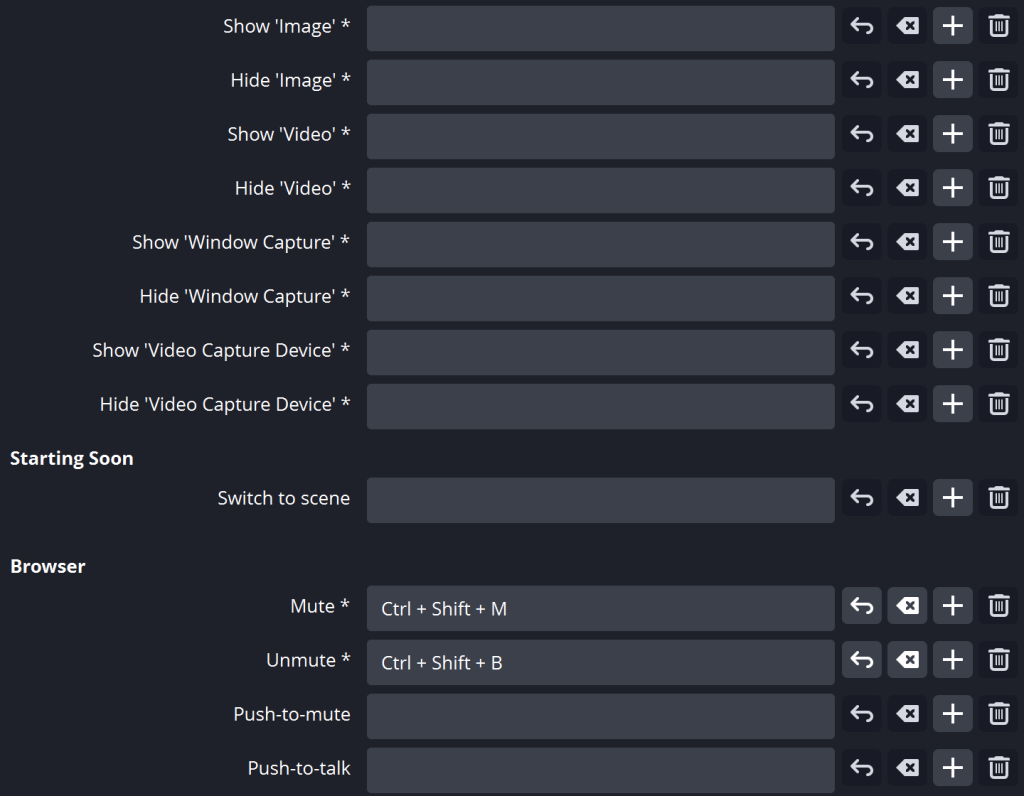
Hotkeys are keyboard shortcuts that let you control OBS quickly without clicking through menus. There’s no fixed rule here—your hotkeys should match your personal workflow and streaming habits.
After a few live streams, most users naturally figure out which actions they repeat the most, such as switching scenes or muting audio. Those are the ones worth assigning to hotkeys. Keep it simple, stay comfortable, and add more shortcuts only when they genuinely save you time.
Audio Filter
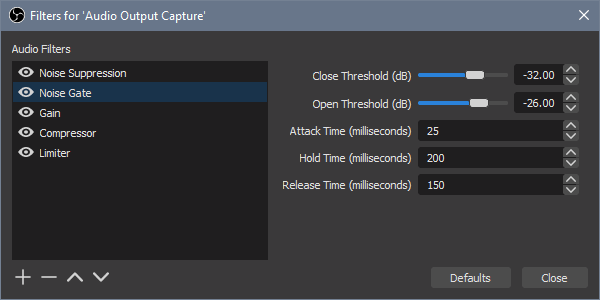
Recommended filters to focus on: Noise Suppression, Noise Gate, and Gain.
Audio filters help reduce background noise and keep your voice clear during a live stream. While audio filters aren’t mandatory for every setup, they’re especially useful for creators who rely heavily on voice—such as streamers, educators, or podcast-style content creators.
OBS includes built-in audio filters that are easy to configure. Noise Suppression reduces constant background sounds, Noise Gate prevents unwanted noise when you’re not speaking, and Gain helps balance audio levels. Used together, these filters can noticeably improve overall audio clarity without requiring additional software.
Conclusion
OBS doesn’t need to be intimidating. Once you understand a few key settings—bitrate, encoder, keyframe interval, plus some helpful hotkeys and audio filters—streaming becomes far easier and more predictable. Start with recommended values, test your setup, and adjust as you go. A little hands-on time goes a long way.
And while OBS helps you manage the stream, your camera still sets the foundation. A stable, high-quality PTZ camera can make live production smoother from the start. That’s where solutions like Telycam quietly fit in—reliable video, flexible control, and support when you need it, so you can focus on creating and going live with confidence.

Contact Telycam
Sales Inquiries
sales@telycam.com
Call Us
+86-755-33275155