Most meeting rooms already have a USB camera. Maybe it's a webcam, a video bar, or a PTZ camera — and for most teams, that setup works just fine.
But here's what a lot of people don't realize: when you pair a USB camera with Zoom Rooms, you're not just getting a basic video feed. Zoom Rooms adds a layer of AI-powered features on top — auto-framing, participant tracking, and a multi-stream mode that can simultaneously capture the whole room and every individual in it.
In this guide, we'll walk through Zoom Rooms' three camera modes, what each one actually does, and when to use them
Three Camera Modes in Zoom Rooms — And When to Use Each
Once your USB PTZ camera is connected and selected in the Zoom Rooms Control Panel, you'll notice three camera modes available. Each one serves a different purpose — and knowing when to use which can make a real difference in how your meetings look and feel.
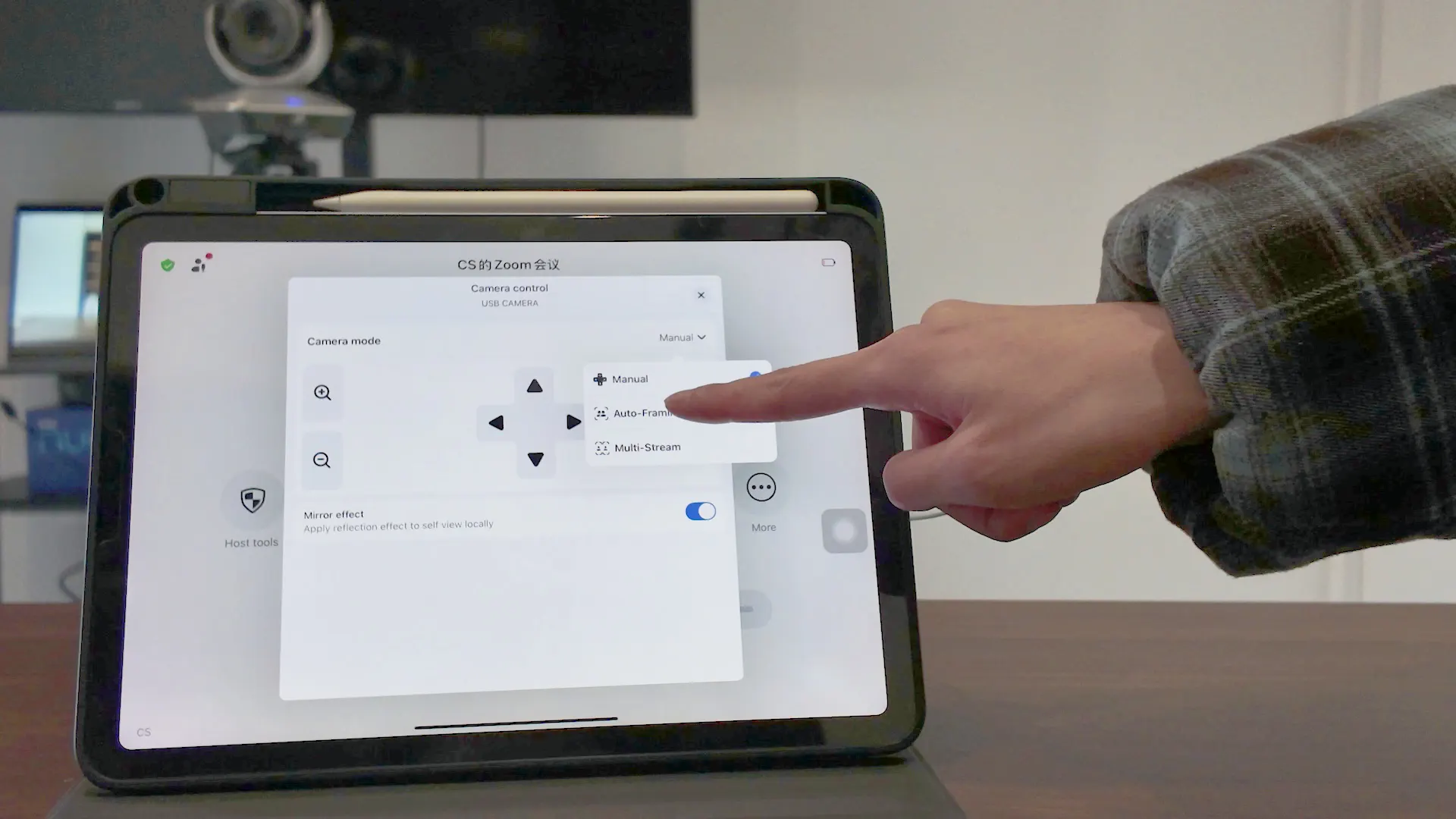
Manual Mode — Full PTZ Control
Manual mode gives you direct control over the camera's pan, tilt, and zoom, along with the ability to save and recall preset positions. It works exactly as you'd expect from a PTZ camera: you set your shots in advance, and switch between them as needed during the meeting.
This mode is best suited for scenarios where you want precise, repeatable framing — a fixed presenter position, a specific area of the room, or a setup where someone is actively operating the camera. If you've used PTZ cameras before, this will feel familiar.
Auto-Framing Mode — Smart Room Coverage
Auto-framing hands control over to Zoom's built-in AI. The camera automatically detects people in the room and adjusts its framing to keep everyone in the shot — widening out when more people are present, tightening up when it's just one or two.For day-to-day team meetings where nobody wants to think about camera operation, this mode is the obvious choice. It's not new — Zoom introduced auto-framing a few years back — but it holds up well in practice, especially in smaller rooms where the camera can cover the full space without needing to pan significantly.
Multi-Stream Mode — The Most Underrated Feature in Zoom Rooms
Multi-stream is where things get genuinely interesting. Instead of outputting a single room view, Zoom Rooms generates multiple simultaneous video streams: a wide shot of the entire room, plus individual close-up streams for each participant. When someone new enters the frame, a new stream is created automatically. When they leave, it disappears.
For online participants, this means they're not stuck watching a wide room shot where everyone looks small. They can see individual faces clearly, follow who's speaking, and get a much more engaging viewing experience — without any manual camera operation on-site.
This makes multi-stream particularly valuable for corporate training sessions, panel discussions, and hybrid events where the remote audience's experience actually matters. It's the kind of feature that quietly closes the gap between a meeting room setup and a proper production workflow.
Manual Mode: Full PTZ Control
Take complete control of your camera with manual pan, tilt, zoom, and saved presets.
Best For:
Presenter-focused sessions, fixed shot setups, professional operators
Auto-Framing: Smart Room Coverage
Zoom's built-in AI automatically detects and frames everyone in the room — no operator needed.
Best For:
Everyday team meetings, small conference rooms, hands-free operation
Multi-Stream: The Underrated Feature
Simultaneously captures a wide room view and individual close-ups of every participant — updated automatically as people enter or leave.
Best For:
Corporate training, panel discussions, hybrid events
Want to see all three modes working in a real Zoom Rooms environment? Watch our hands-on test below
Hardware Spotlight
Meet+ 3
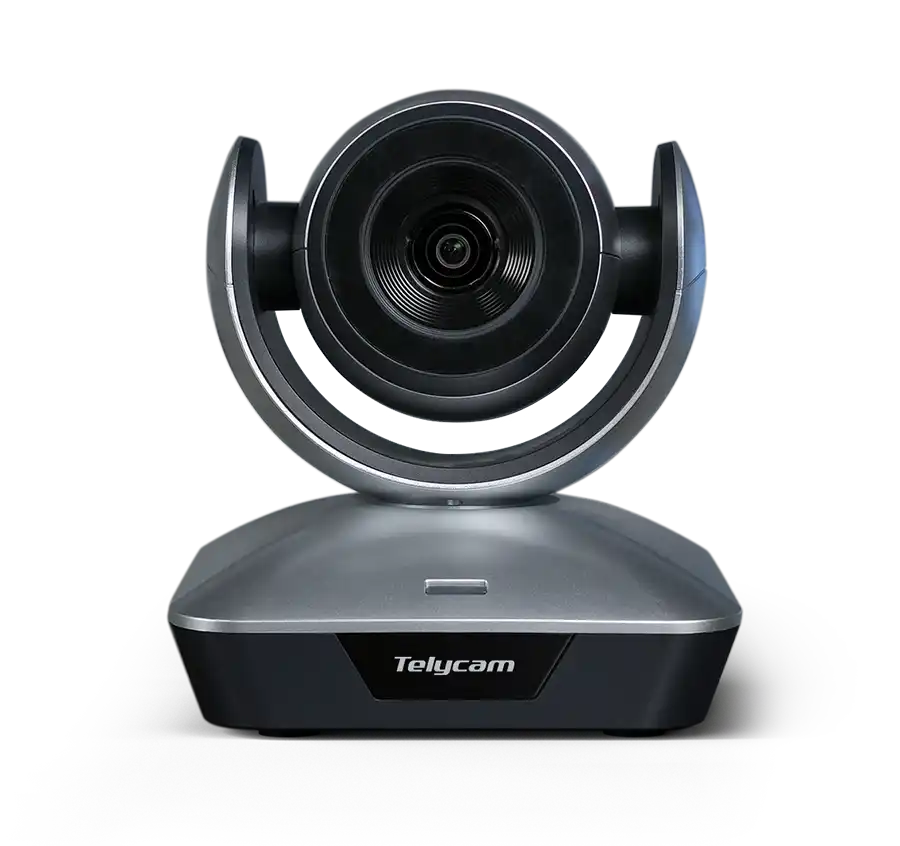
In today’s hybrid work environment, simplicity and performance matter more than ever. What makes Zoom Rooms stand out is how its built-in AI features—like auto-framing and multi-stream—can significantly elevate the performance of even standard USB cameras. What used to require complex setups and expensive hardware can now be achieved with a much more streamlined approach.
For teams working with limited budgets but still aiming for a polished, professional meeting experience, this setup offers a compelling balance. You’re not just saving on cost—you’re gaining flexibility, ease of deployment, and intelligent features that genuinely improve how meetings look and feel.
If you're exploring ways to upgrade your conference room without overcomplicating things, this combination is definitely worth considering.